

Introduction
Ollama is a powerful tool for running local language models efficiently on your computer. Windows users can now enjoy native support with GPU acceleration, eliminating the need for WSL2. This guide provides a step-by-step walkthrough for beginners, troubleshooting tips, and advanced solutions for common installation challenges.
Prerequisites
- Windows 10/11 installed on your system.
- Minimum of 4GB RAM and 20GB free disk space.
- Latest GPU drivers if you’re opting for GPU acceleration.
Step 1: Download Ollama Installer
Visit the official Ollama download page and choose the Windows installer package.
Step 2: Install Ollama
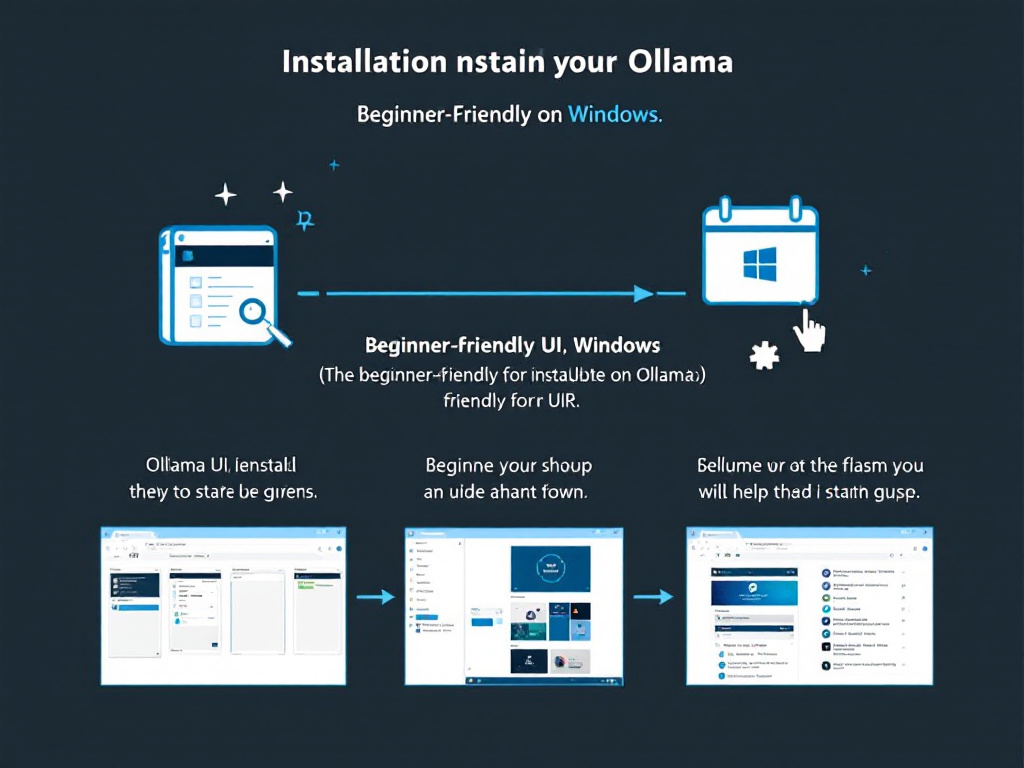
1. Double-click the downloaded installer file.
2. Follow the on-screen instructions to complete installation.
3. Once installed, open the command line and type ollama --help to verify the installation.
Step 3: Troubleshooting Common Issues
- Problem: Installer fails on startup.
Solution: Ensure you have administrative privileges and try running the installer again. - Problem: System compatibility error.
Solution: Update your Windows system to the latest version. - Problem: Command
ollamanot recognized.
Solution: Add the Ollama installation directory to your PATH environment variable.
Advanced Customization & Usage
After successful installation, you can explore advanced functionalities:
- Use
ollama run [model]to load specific models. - Edit
.ollama/modelsfor custom configurations. - Install additional LLMs for tailored experiences.
Related Resources
Visited 1 times, 1 visit(s) today
[mc4wp_form id="5878"]